

Question
How Can Clinicians Personalize the SONNET 3's Touch Key and Wireless Streaming Settings to Match Individual Patient Needs?
Answer
Touch Key Configuration
The touch key is one of the newest user-friendly additions to the SONNET 3, activated with a simple finger tap rather than a traditional physical button. This can be especially helpful for recipients who have difficulty locating small processor controls, such as older adults, individuals with reduced vision, or those with dexterity concerns. The touch key is disabled by default, so enabling it is an intentional programming decision based on the recipient's needs, and the setting is processor-wide, meaning the selected function applies across all saved programs.
Two functions are available once the touch key is enabled in MAESTRO: switching between listening programs, or entering and exiting standby mode.
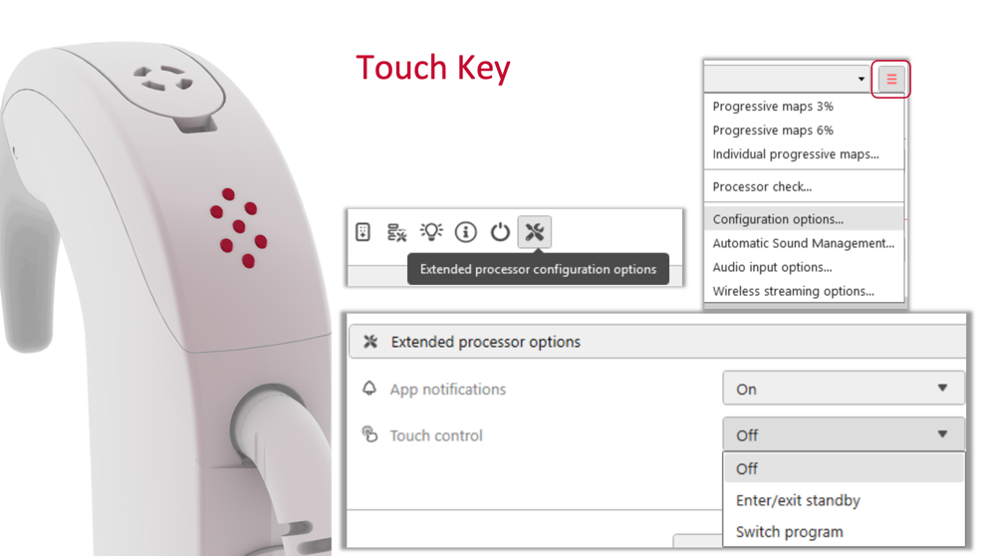
Figure 5. MAESTRO configuration screen for enabling and selecting the SONNET 3 touch key function.
Source: PDF Handout (Part 2), Page 5
A recipient's likely use pattern should guide this choice: someone who moves between several listening programs throughout the day may appreciate quick program-change access, while a recipient who rarely changes programs, or who is prone to accidental activations, may prefer to leave the touch key disabled altogether.
Energy Management
Energy Management is a separate, processor-wide setting that is enabled by default and requires no action from the recipient. When the processor cannot detect the implant for five minutes, it automatically enters standby mode, powering down the processor and coil by approximately 90%, and it reactivates automatically once the coil is placed back over the implant. This background feature helps conserve battery during predictable off-body periods, such as bedtime, sports, or showering, without any adjustments needed.
Personalizing Wireless Streaming
Wireless streaming is enabled by default on the SONNET 3, and in most cases no adjustments are necessary. However, streaming preferences can be individualized on a program-by-program basis. The default setting, mixed input, allows recipients to hear both the streamed signal and their environmental sounds simultaneously, which works well for everyday situations like listening to music while walking or streaming navigation directions. The alternative, streaming only, turns off the processor's microphones during streaming so the recipient hears only the streamed audio, which can benefit someone attending an online lecture, participating in a virtual meeting, or watching a movie in a busy household.
These mix input options are set within the Wireless Streaming Options screen in MAESTRO, shown below with the default "Mixed" setting selected.
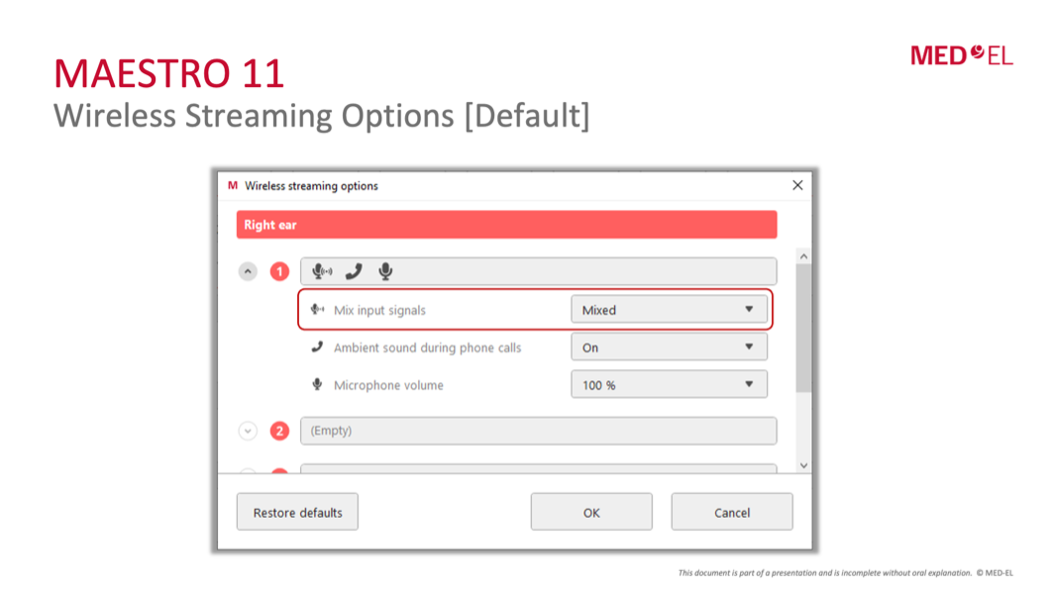
Figure 6. Default MAESTRO 11 wireless streaming configuration showing the mixed-input setting.
Source: PDF Handout (Part 2), Page 11
Additional fine-tuning is available for phone calls and for balancing environmental awareness with streamed content. Clinicians can turn ambient sound during phone calls on or off: with it on, recipients hear both the caller and their surrounding environment, including their own voice, which some recipients find more natural, while turning it off isolates the caller's voice, which can help in noisy environments. Microphone volume can also be reduced by up to 25% in 5% increments during streaming, allowing a customized balance between environmental sounds and streamed audio rather than an all-or-nothing choice.
The ambient sound during phone calls setting and the microphone volume reduction option appear together in the same configuration screen.
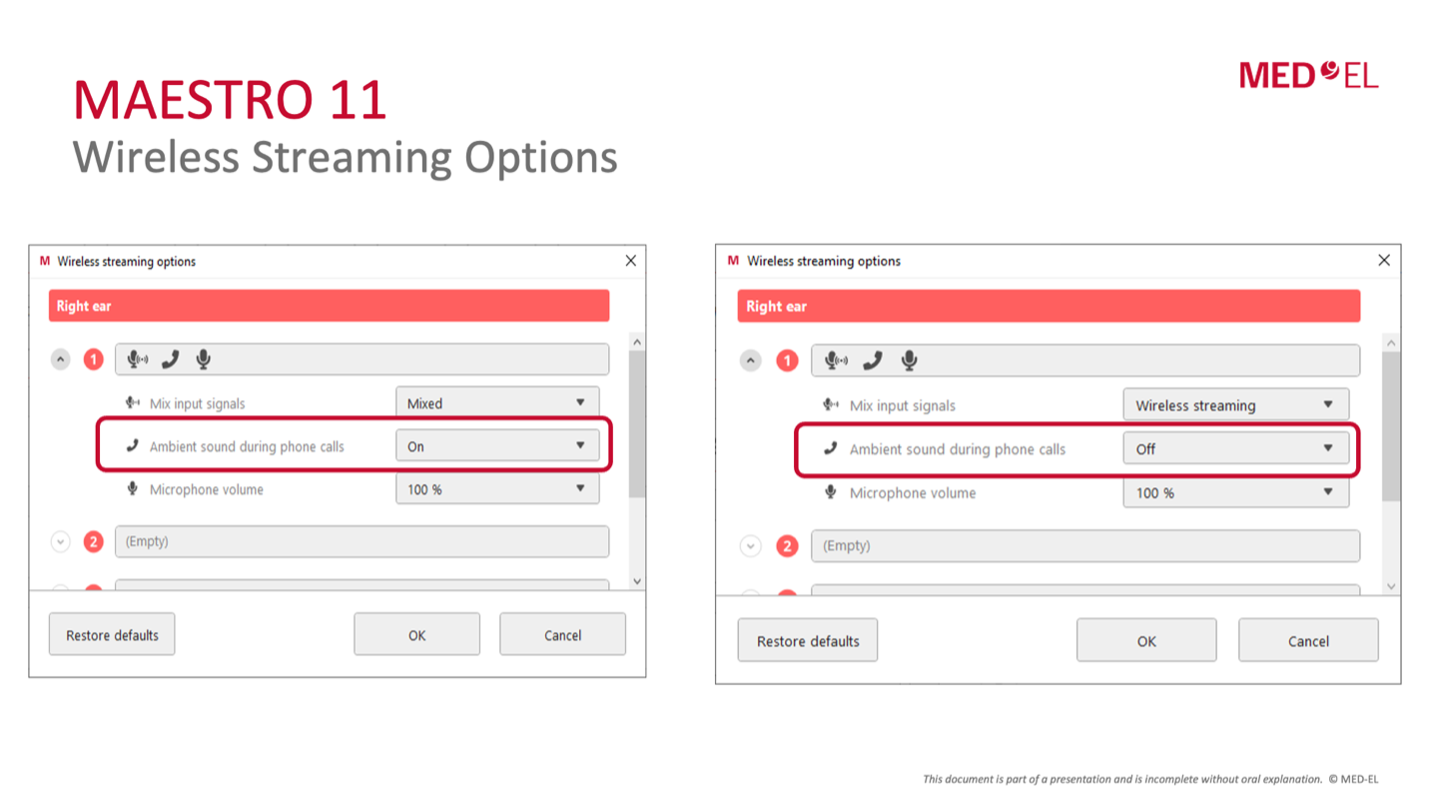
Figure 7. Comparison of the ambient sound during phone calls setting in its On and Off states.
Source: PDF Handout (Part 2), Page 13
As Dr. Pham notes, none of these features changes the underlying map, but each has the potential to influence satisfaction, convenience, and quality of life. The touch key provides simple user control, energy management maximizes efficiency in the background, and personalized streaming settings expand connectivity to match how each recipient lives and communicates. Thinking beyond the map, and matching these software features to the individual rather than leaving everything at default, is often what transforms a good fitting into a great overall patient experience.
This Ask the Expert is an edited excerpt from the course, Pham, B. Sonnet 3: Touch Key Functions, Energy Management, and Wireless Streaming Options. AudiologyOnline.
Continued and its subsidiaries provide professional education authored by qualified Subject Matter Experts for continuing education purposes. These materials are intended for educational purposes and do not constitute medical advice or a substitute for individual clinical judgment. Continued is not a clinical healthcare provider; the licensed professional is solely responsible for ensuring that the application of any techniques or information presented is within their legal scope of practice and jurisdictional requirements.